Use without an account
Explore the map, whiskies, distilleries, bottlers, whisky bars, ratings, the lexicon, news, releases, and events without logging in.
Get started
Find answers and short guides to the map, distilleries, and your personal whisky features.
Use the map and public directories to explore the world of whisky. With a free account, you can also build your own collection, save wishes, write ratings and share collections.
The labels on each topic show whether the feature is available without an account or requires you to log in.
You can start without an account and log in when you want to save your own information.
Explore the map, whiskies, distilleries, bottlers, whisky bars, ratings, the lexicon, news, releases, and events without logging in.
An account gives you access to the dashboard, collection, Wish Cloud, your own ratings and sharing. Personal features are available from the My Whisky menu and the user menu.
The main menu items open the map, places, ratings and glossary. Whisky Universe brings inspiration together, while My Whisky contains your personal tools when you are logged in.
Install Whiskykort on your phone, tablet or computer. It is the same service and account, but the web app opens in its own window and does not require an app store.
When the browser supports direct installation, Install app appears in the main menu. Select it and confirm the installation. If the button is not shown, use the browser's own menu as described below.
Open the site in Chrome or Edge, open the browser menu, and select Install app or Add to Home screen. Then confirm the installation.
In Chrome or Edge on Windows, macOS or Linux, select the install icon in the address bar or Install app in the browser menu.
In Safari on recent versions of macOS, select File and then Add to Dock. If installation is not offered, you can continue using Whiskykort normally in the browser.
When a new version is ready, a message appears with an Update button. If the connection is lost, an offline page is shown; maps, search and personal data still require an internet connection.
The map brings distilleries, bottlers and whisky bars together. The result count updates when you search or filter.
Enter the name of a distillery, bottler or whisky bar in the search field. Select a result to locate it on the map, then click its marker for information and relevant links.
Under Filters, select place type, distillery status, country, whisky type and other properties. On mobile, filters open in a panel over the map, which you can close with the close button or by tapping outside it. You can combine several filters and use Reset filters to start over.
Select My location and allow the browser to access your location. When a place has coordinates, select Directions to open navigation in your map service.
Open Filters and select Map type to switch between the road map, satellite map and OpenStreetMap. Use Show all to fit the map to the results, or open the map in full screen. On mobile, open search and tools with the button above the map; the zoom controls stay above the bottom navigation.
Filters are grouped under Places, Filter places, Production and Map & regions. Click or tap a heading to open a group. Your selections are kept when you collapse a group or close the filter panel.
The screenshots show the map in the dark theme with a selection of places on Islay. Counts and selections are examples and may change. Images follow the page language; choose Mobile or Desktop to see the other view.
On mobile: Tap the search/filter icon above the map, then Filters. Tap the handle at the top of the panel, or drag it upwards, for more space. Scroll inside the panel and close it with the cross or by tapping outside. On desktop, close the panel to make the map wider and reopen it with Filters.
Under Places, turn Distilleries, Bottlers and Whisky bars on or off. Under Filter places, choose Country, Whisky type, Other and Distillery status. Country applies to all three types of place; whisky type, Other and status apply to distilleries.
Open a filter list and use Search this list to find an option. This search only narrows the list of options; it does not change filters you have already selected. You can select multiple countries or statuses. For Whisky type and Other, a distillery must match all selected properties.
Example: Select Scotland under Country and Active under Distillery status to show active Scottish distilleries. Turn Bottlers and Whisky bars off under Places if you only want to see distilleries.

Open Production and enable Water sources, Peat, Maltings, Cooperages or Warehouses and maturation sites. You can display several layers at once. Production layers are shown independently of country, whisky type and distillery status.
Wait for the place count to appear beneath the layer. Click or tap Show production places to zoom to all places in the selected production layers. On mobile, the filter panel closes so you can see the map. If a layer cannot be loaded, click or tap Try again.
Click or tap a production marker for details, sources and any distillery connections. Uncertain connections are labelled in the details. The layers contain selected, documented places; markers represent places rather than area boundaries.

Under Map & regions, choose Map type. OpenStreetMap is always available; road and satellite maps are shown when available on the site. The legend shows symbols for distilleries, bottlers and whisky bars.
Enable Scottish whisky regions to see the regions on the map. Boundaries are approximate. The regions layer is an additional map layer and does not change your selected place filters.

Active selections appear as labels below the map search field. Click or tap the cross on a label to remove that selection. Counts beside the groups and the Filters button show your active selections even when groups are collapsed.
Click or tap Results to see distilleries, bottlers and whisky bars in the current map view. The list follows your place filters and changes as you move or zoom the map. Production places appear on the map but are not included in this list. Select a result to open the place. After using My location, you can also sort the list by Distance.
Use Show all to zoom to the filtered distilleries, bottlers and whisky bars. If the map is empty, remove a filter or click or tap Reset filters at the bottom of the filter panel. Resetting clears the search and place filters, turns off production and region layers and restores the usual types of place.

Collect places you have visited or want to visit in your own map layer. Save multiple visits with dates, descriptions, private notes and photos, and link your whisky tastings to your experiences.
Log in and choose My whisky → My whisky experiences to open the overview. On mobile, use the menu button to open the main menu. You can also choose View all my places in the map’s experience layer.
The screenshots show examples from the demo account in dark mode. Form labels follow the page’s language; saved place names, experiences and tasting names remain in the language they were written in. Choose Mobile or Desktop to see the other view.
Open Filters on the map, expand My whisky experiences and turn the layer on. Choose All my places, Visited places or Places I want to visit. Green pins with a check mark show visited places; gold pins with a diamond show places you want to visit.
On mobile, first open the search/filter tools above the map, then choose Filters. Tap the handle at the top of the filter panel for more space, and scroll within the panel. Close it to see the whole map. On desktop, the filters appear beside the map.
Public whisky experiences are a separate layer with blue pins. Anyone can read public visits, even without logging in. You can turn the two experience layers on and off independently of each other and the map’s other layers.

Click a distillery on the map and choose Add to my whisky experiences in its popup. The name and location are filled in automatically. If the distillery is already saved, the button reads View my whisky experiences and opens your existing place without creating a duplicate.

In the overview, choose Create experience and open Choose an existing location. Type at least two characters and select a suggestion from the field’s list. You can search for distilleries, whisky bars and bottlers; the selected place supplies the name and location.
To save a fair, festival or another place, choose Add a pin in the map layer and click the map. Enter a name and private notes. Choose Want to visit to save a wish, or Visited – add a visit to record an experience. You can also create a place without a location from the overview and place it on the map later.

Open your place, choose Add visit and enter the visit date, title, description and any personal notes. You can add multiple visits to the same place; the newest appear first. The first saved visit changes the place’s status to Visited, and all visits share the same pin.
Choose Private or Public for each visit; new visits are private by default. A public visit shows your public username, date, description, photos and the place’s location. Personal notes are always private. A place can have both private and public visits, and visibility can be changed later.
Select one or more JPEG, PNG or WebP photos, up to 10 MB per photo, and choose Save visit. Photos belong to the individual visit. Open a photo for a larger view and choose Full screen to expand it. Add more photos by editing the visit, and remove photos from the place’s visit panel.

When you make a visit private, others can no longer open the visit or its photos. Unwanted public content may be removed.
Have you attended a whisky fair and collected your ratings under a tasting? Select it under Linked tasting in the visit form and choose Save visit. Each visit can be linked to one of your existing tastings.
If the tasting does not exist yet, create it under My tastings and collect your whisky ratings there. You can then link it to a new or existing visit. You can also choose Create experience from the tasting’s own page; the date and tasting are filled in for you.

The saved visit includes an Open tasting link. It opens the tasting with your recorded whiskies, notes and scores. Linking does not change the visibility of the tasting or your ratings, and the tasting link is not shared with others through a public visit.

The overview shows your visits and places you want to visit. Search places, experiences and notes, and filter by status, visibility or linked tasting. Sort by date or place name and choose Apply filters. Reset clears the overview’s selections.
Choose Edit visit to change the date, description, photos, visibility or tasting. View and edit place opens the place’s name, private notes and all its visits. Show on map locates the pin.
Delete visit removes only the selected visit and its photos. Remove place in the place’s panel removes the place and all your visits and photos there. You are asked to confirm deletion. Removing an experience does not delete a linked tasting or its ratings.

Choose Change location from the overview or the place’s panel. The map opens in placement mode: click or tap the correct spot to save the new location. If the place has no coordinates yet, choose Place on map.
Only your personal pin moves; the existing distillery, whisky bar or bottler’s location is unchanged. Visits, photos and tasting links are preserved. Choose Cancel placement, or press Escape on desktop, if you do not want to move the pin.

The directory pages work as standalone lists and as gateways to the map, whiskies, background articles and external websites.
Use the search icon at the top of the page to search across whisky descriptions, distillery profiles, bottlers, whisky bars, public ratings, lexicon entries, releases and events. Search also understands related words and tasting descriptions. On mobile, the icon stays next to the menu. On desktop, you can also use Ctrl/⌘ K.
Enter at least two characters. Press Enter to perform the full search, or click a suggestion to open the result directly.
Put quotation marks around multiple words to find only the exact phrase, e.g. "Thy Whisky". You can add a category outside the quotation marks, e.g. "Thy Whisky" distillery.
Search by name or alias, filter by country, type and properties, and expand a result. From there, you can view the place on the map, find associated whiskies, read a summary, visit its website or hear its name pronounced when audio is available.
The bottler pages show profiles, brands and relationships with distilleries. On whisky bar pages, you can find visitor information, open the place on the map and read user reviews.
Filter the whisky database by country, type and distillery. Choose whether all or just one of the search terms must match, and use | between alternatives. Switch between the detailed view and a whisky shelf with bottle images; expand a whisky for more information and a link to the distillery.
The ratings overview groups tasting notes and scores by whisky. The glossary explains words, terms and tags found elsewhere on the site.
My whisky overview is the starting point for your personal whisky data and requires login.
See the number of bottles, unique whiskies, distilleries and wishes. The breakdown also shows how many bottles are open, unopened or empty, for example.
My whisky overview shows recently added bottles, wishes and ratings. Use View all or the shortcut buttons to open the full list.
If bottles are missing images or personal notes, My whisky overview shows a reminder and a shortcut back to your collection.
My whisky overview shows your activity and personal shortcuts. Collection statistics shows how your bottles are distributed. Tasting notes and ratings brings ratings together. On mobile, the bottom menu highlights My whisky or Whisky, while the expanded menu shows the exact page.
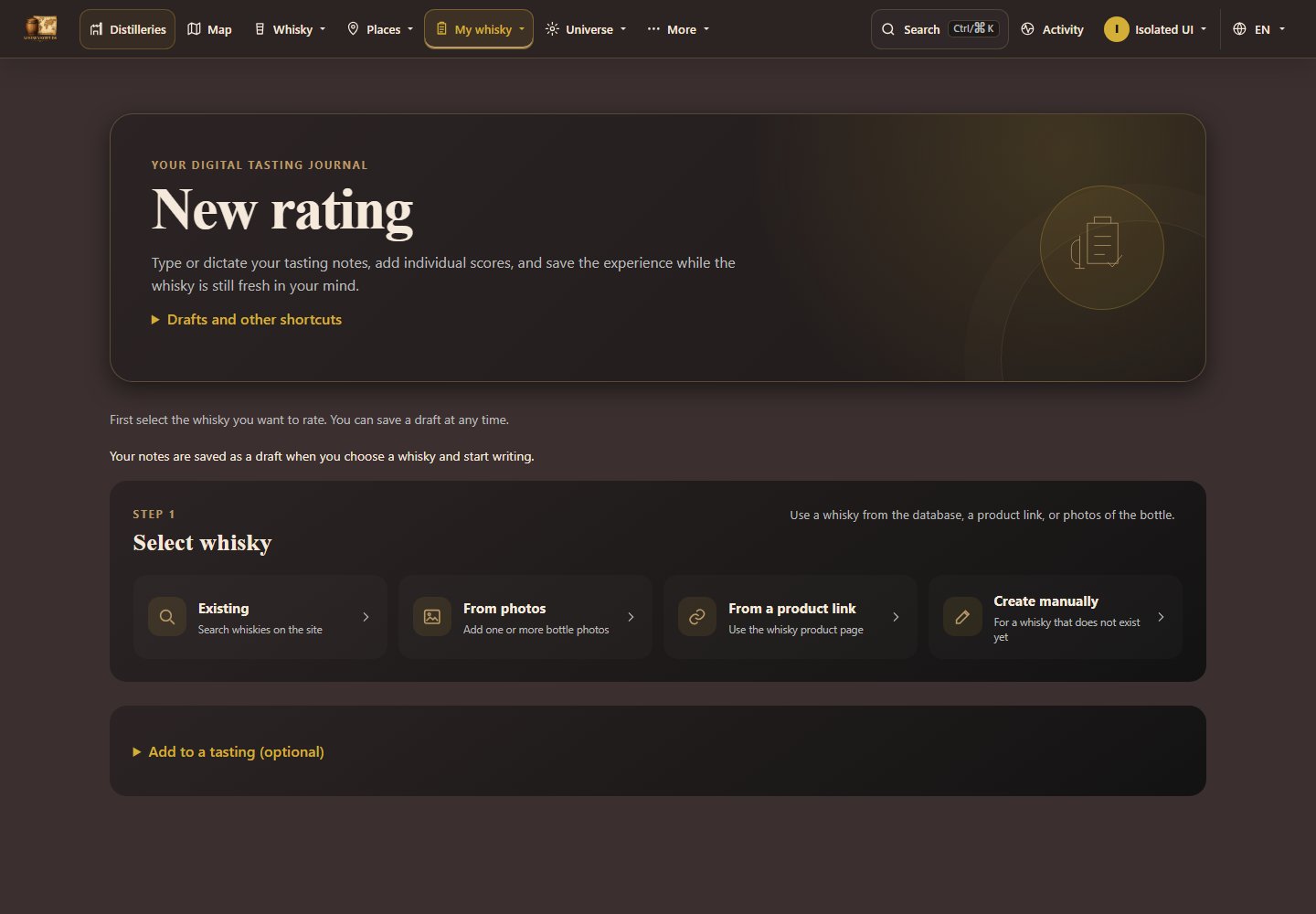
Selected filters appear above your collection results, even when the filter panel is closed. Press a filter with × to remove just that filter. Your search, other filters, sort order and view are kept. Results restart on the first page. The browser Back button restores the previous filter.
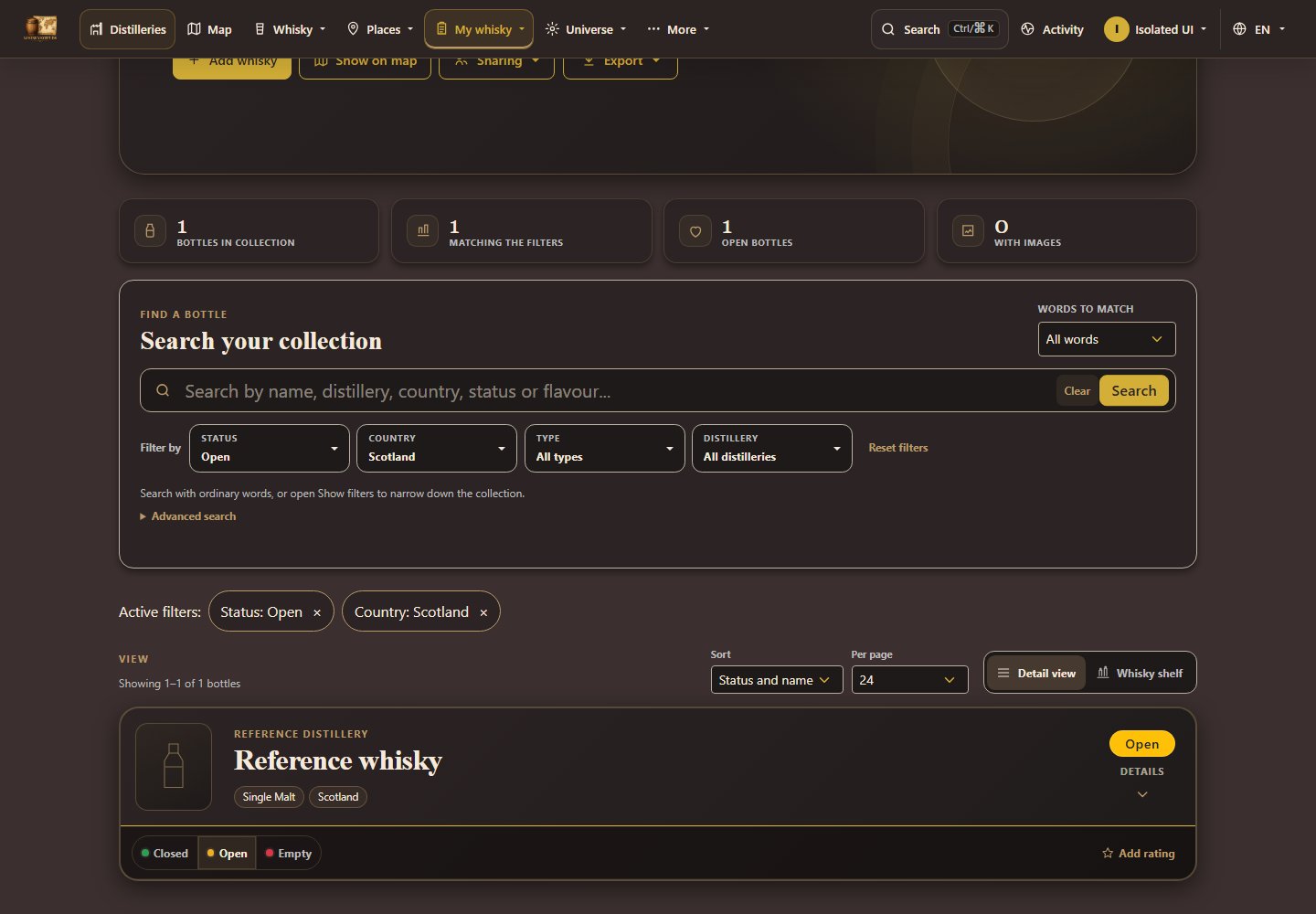
The transfer is available for one hour in the same browser. If it fails, use Copy all notes and paste the text manually into Note. The note sheet is saved separately in the browser for up to 30 days when your browser allows it.
On the home page, choose Pause slideshow for events. You can still browse manually. Choose Start slideshow to resume. If your device prefers reduced motion, the slideshow starts paused.
From the first label to a saved whisky. Choose whether to register a bottle in your collection or just create the whisky profile.
The screenshots show the actual form with example data in the dark theme. The details and possible duplicates are for demonstration only.
Open whisky creationChoose To my collection if you own the bottle. Choose Create whisky profile only to add just the whisky to the database. You can change your choice before saving.

First search by name, distillery or bottling. Select an existing whisky if it matches. Otherwise, use images, a product page or Create manually. You only need to choose one method.
Choose From image and add up to 6 images of the same whisky. Include the front, back and a close-up if possible. On mobile you can also choose Take label photo. Press Read images and wait for the fields to be filled.

Choose From URL, paste a direct link to one particular whisky and press Fetch details. Avoid search results and category pages. Including a screenshot of the product page is optional and makes the import slower.

Create manually opens an empty form. Only the name is required. If you enter a distillery or brand, select a result from the list or use Unknown distillery / Continue without brand.
Check the name, distillery, alcohol percentage and size in particular. Size is in ml: 50 cl is 500 ml. A unique distillery match is selected automatically, including small spelling differences, without another confirmation click. You can edit or undo the choice.
More whisky details includes bottler and cask information. Add details from an image or product page if anything is missing. Your edits are kept; when details conflict, choose the correct value.

Under Image, a single imported image is selected automatically. If there are several, choose the one to use. You can also upload another image or take a bottle photo. Use no new image deselects the image; the button does not save anything.

This step only appears for To my collection. Select the bottle's status and open More bottle details to add purchase price, currency, shop, dates or notes. These details belong to your own bottle.

Compare with the existing whisky. Use existing and save is for the same bottling. Save as a different bottling is for a different whisky variant. The name alone is not enough: also check strength, size, vintage and cask. The existing profile is not overwritten.
On mobile, differences are shown first. Open Show matching details for the rest. In this example, the sizes differ: 500 ml and 700 ml.

Press Save to collection or Save whisky profile, depending on your purpose. Save and create next prepares another whisky. Keep the distillery, brand, bottler and save destination if you want to reuse them. For a possible duplicate, use one of the two choice buttons above instead.

You can resume a saved draft after reloading or choose Cancel creation to discard it. A directly uploaded bottle image must be selected again after reloading; fields and selected scan images are kept.
Use the button beside the basic details when creating or editing a whisky. Suggestions help supplement the label; you choose what to keep.
Enter the name and select a distillery or brand, or enter the bottler. Add the age, vintage, bottling year, edition, cask number, alcohol percentage and bottle size when known. Then select Fetch extra information. Official product pages and product sheets are prioritised.
Each release has one lookup shared across accounts. A later visit retrieves the previous result, including an empty or failed lookup. Minor spelling changes or changes in alcohol percentage do not start another search. Photos already read are reused.
Open the source links and check the exact bottling. Rounding differences in alcohol percentage are shown; your value is kept. A source suggesting a different bottling is marked as unconfirmed. Unreadable or unconfirmed sources remain available as links, but do not fill fields.
Select Fill empty fields with the suggestions. A description is appended below existing text with a blank paragraph. The same suggestion is not added twice. Other filled fields are kept. Review the form and use its normal Save button.
The message lists the fields actually changed. If the suggestions only cover fields already filled, the message says that nothing changed. A confirmed source link does not always provide a description; the form tells you when no confirmed description was found.
A page showing only an age check, requiring sign-in or lacking readable product information does not fill fields. The lookup looks for an accessible product sheet or another source within the same budget. Open How searches are counted to see performed searches, calls to the search service and unprocessed attempts separately. Opening pages and listing source links are not new searches.
Write shared descriptions in Danish or English. The other language is updated when saving. For short or ambiguous text, choose Language of the text. Complete, unchanged translations are reused. Private notes, ratings and purchase details are excluded. If translation fails, nothing is saved and no bottle is added; your text stays in the form.

My Collection contains your bottles, images, purchase information and notes. All features in this section require login.
An image or URL can fill in whisky information for you. Always review the suggested fields. If the site finds a similar whisky, you can select the existing entry or continue with a new one.
Choose a status and add the price, currency, bottle code, place of purchase, dates, notes and your own image as needed. You can edit the information or remove the bottle later.
Enter ordinary words in the search field, and use the Status, Country, Type and Distillery dropdown filters to narrow the list. The filters can be combined, and Reset filters removes them again. Under Advanced search, you can still use | between alternatives, for example open|closed.
Use the view buttons below the search to switch between the detailed view and the whisky shelf, which highlights bottle images. Select a bottle on the shelf to expand its details and action buttons. Your choice is remembered on the device.
Use Closed, Open or Empty on the bottle card to change its status without opening the edit page. Open automatically sets the opening date, and Empty sets the emptying date. You can undo the change from the message shown afterwards.
Expand a bottle to see all details. From there, you can edit it, download a PDF for the bottle or go to its distillery on the map. Show on map at the top displays the distilleries represented in your collection.
Export the entire collection as Excel/CSV, a JSON backup or a PDF with or without images. Under Overview, you can group the collection by status, distillery, country, region or type and open the corresponding filtered list.
Wish Cloud is your personal wish list. You must be logged in to create and maintain it.
Choose a whisky and save its priority, price, currency, shop, link, availability, occasion, reason, notes and image as needed.
The overview shows the number of wishes, high-priority wishes and estimated value. You can edit a wish, mark it as purchased or remove it from the list.
Select Share to generate a link for friends and family. Recipients can view the list without an account. You can see its visit count, copy the link and deactivate it when it should no longer work.
Read public tasting notes, or log in to record your own with text, voice input, images and scores.
Search by whisky, brand or notes, expand a whisky, view tastings and images, and use the scoring guide to understand the scale. You can edit your own ratings when logged in.
Start with photos, a product URL, an existing whisky, or manual creation. Then work on one section at a time: nose, taste, finish, or overall note.
Start the microphone for the selected section, or type directly in the text field. You can edit the text and set separate scores for nose, taste and finish before completing the rating.
Review notes and scores, choose the date and visibility, and add any images before saving. An unfinished rating can be saved as a draft and continued later.
Rate a whisky as part of an existing tasting, create a new tasting along the way, or rate a whisky without a tasting. Choose how to start in step 1, then follow steps 2–6.
The screenshots were taken using the demo account in dark mode. Names, notes and scores are examples.
Sign in and open New rating. Start with Choose whisky and write your notes. To link your rating to a tasting, open Add to a tasting (optional) further down. Drafts and other shortcuts are in an expandable menu at the top.


Press Existing, enter the whisky name or distillery, and select the correct bottling from the results. Check the name and ABV before continuing.

If the whisky is missing, use From photos, From URL or Create manually. Check the whisky details during the final review before saving your rating. See also: Create a whisky step by step
Choose Nose, Taste, Finish or Note. Type in the text field, or press Start dictation and allow microphone access in your browser. Stop dictation when you are done speaking. Switch sections to describe the rest of the experience.
Optionally give nose, taste and finish separate scores from 1 to 100 using the score picker. You can also edit the numbers during the review. Press Finish to continue; your final rating has not been saved yet.

To take a break, press Save draft and check the message confirming it was saved to your account. Find it again under Drafts. New rating starts a separate rating.
Read all four note fields, edit the text and check the three scores. Back to notes returns to the editor. Choose whether to enable Improve notes with AI during analysis/create.

Check the date and Make the rating public. A public rating can be read without logging in. Uncheck the box for a private rating. You can also add photos and an image note.
Press Save rating to finish and open the ratings overview. Choose Save and next whisky to rate another bottle straight away. Use Save draft to continue later.

A private rating in a shared tasting can also be seen by people who have access to that tasting. Manage tasting sharing under My tastings.
After Save and next whisky, look for the Rating saved message. Choose the next whisky. Your tasting, date and visibility are kept, while notes and scores start fresh.

Your saved ratings appear in the ratings overview. To find ratings for a tasting, you can also open that tasting under My tastings.
Share your collection with selected users or make it visible to all registered users.
Make the collection visible to all registered users, or give specific users access by email address. You can make the collection private again or revoke a user's access at any time.
Under Shared collections, you will find collections shared directly with you and collections made visible to all registered users. You can remove your own access to a directly shared collection.
Whisky Universe brings together inspiration and current posts that can be read without logging in.
The whisky guide explains production from grain to bottle, different whisky styles and the choices behind flavour. It also helps you read labels, compare tasting samples and document bottles in your collection.
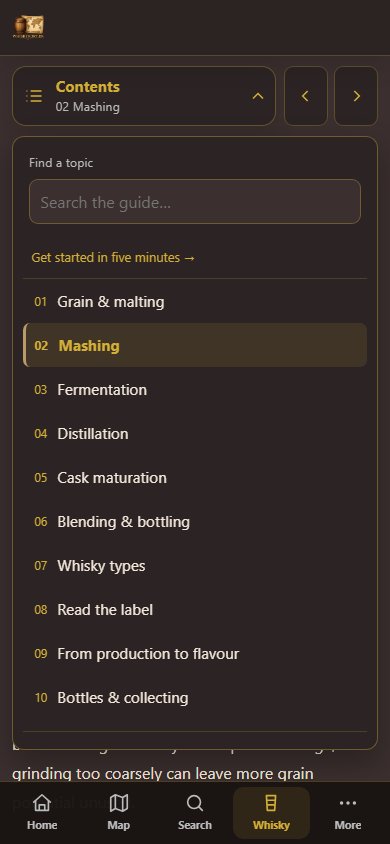
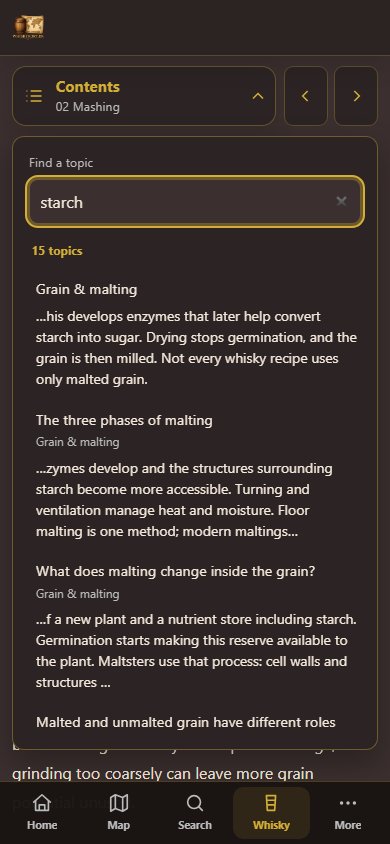
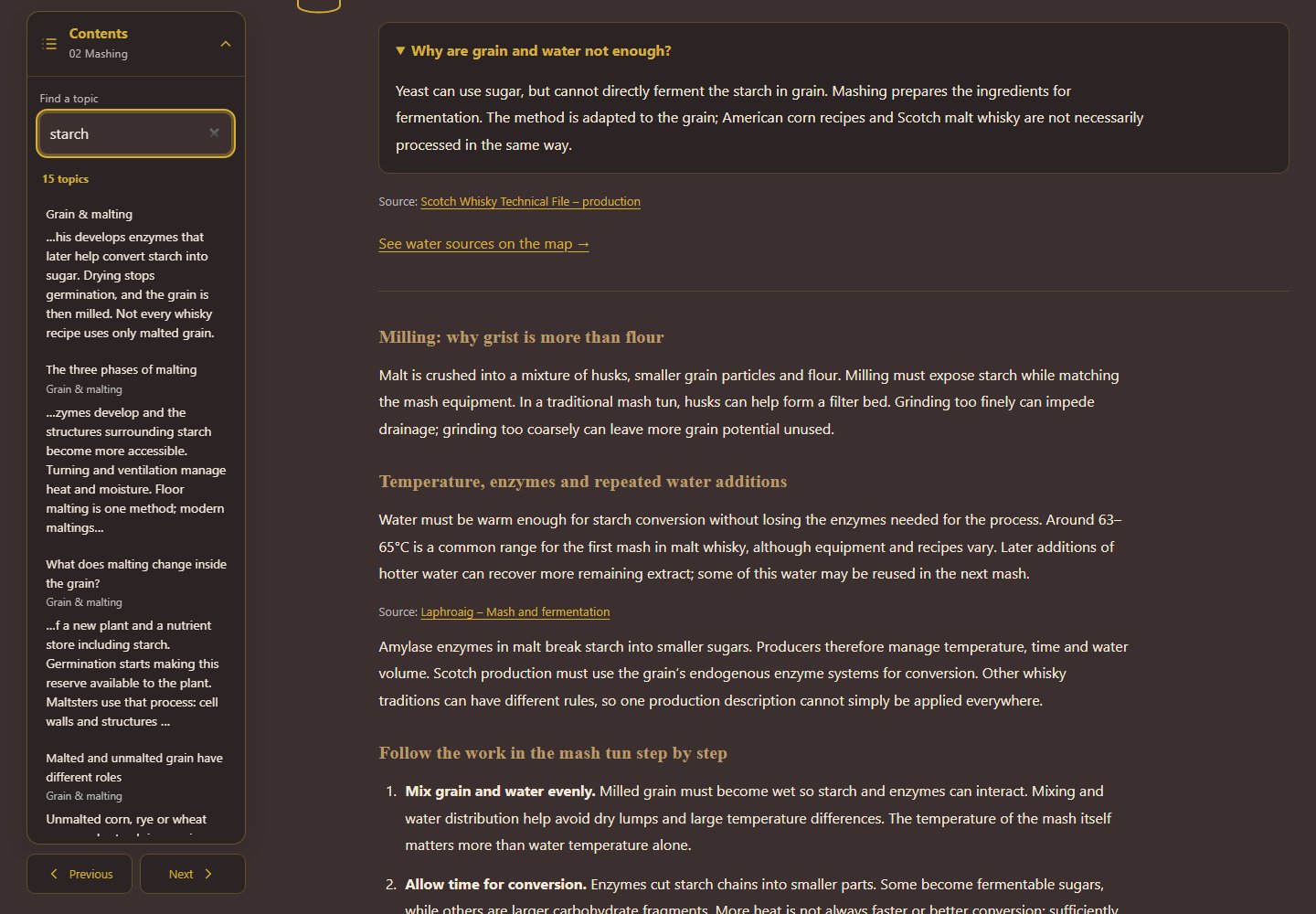
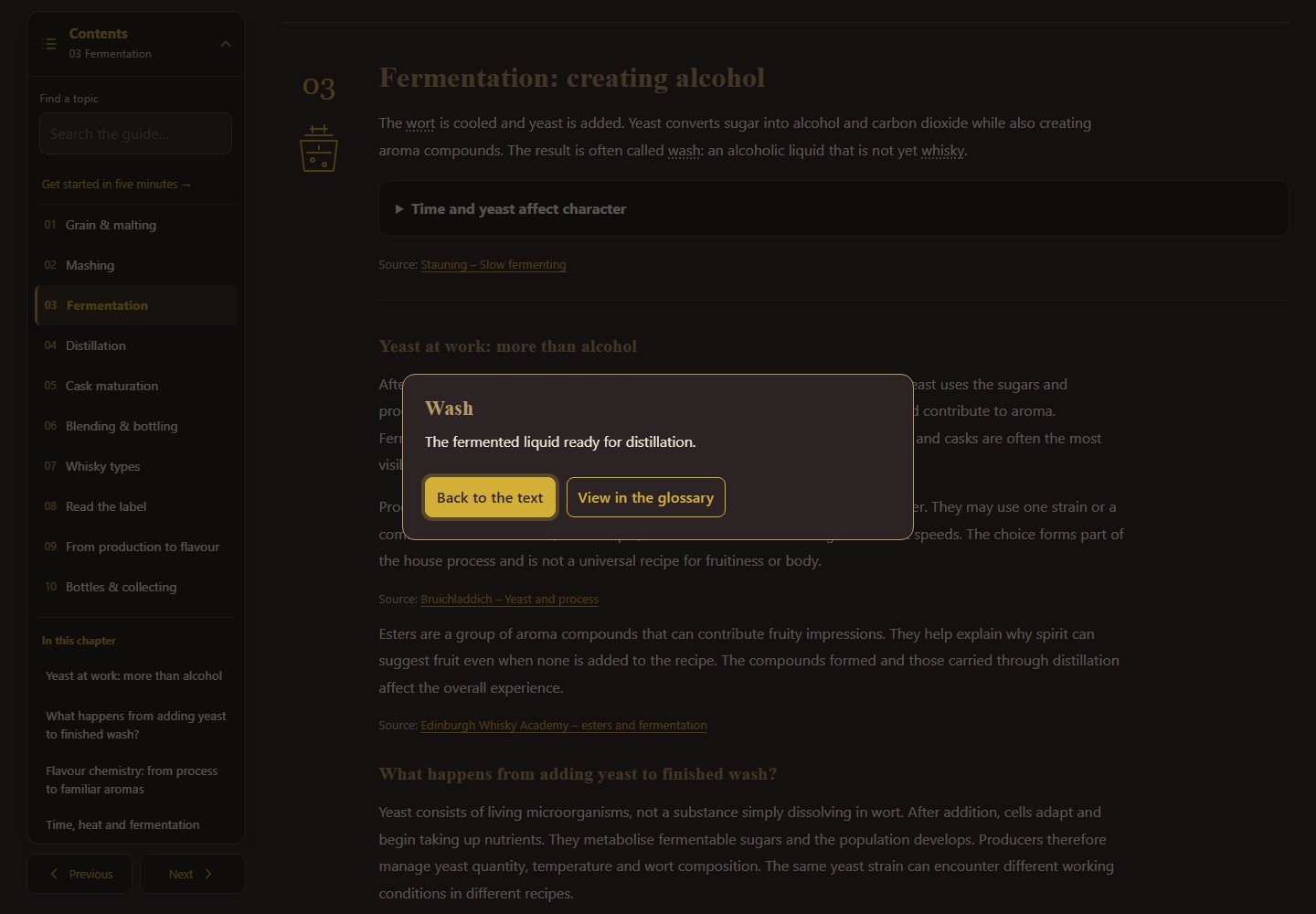
Open Contents to choose one of ten chapters or search for a topic. Navigation stays available as you read; mobile also offers previous/next buttons. Sections have fixed links for bookmarks and sharing.
Chapters, explanations, glossary and whisky paths are readable without JavaScript. Open collapsible explanations manually. Search, automatic opening of section links and reading aids require JavaScript.
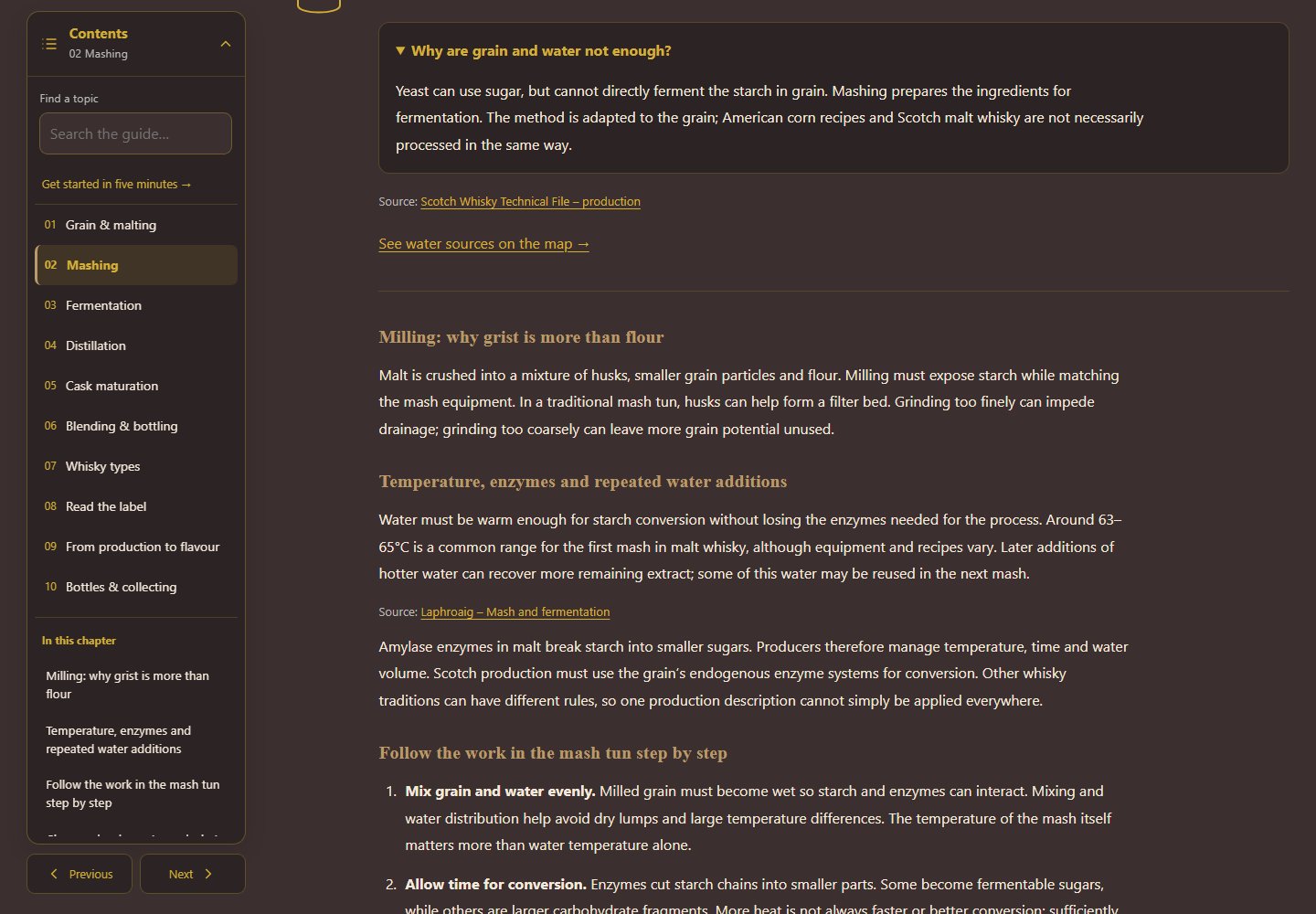
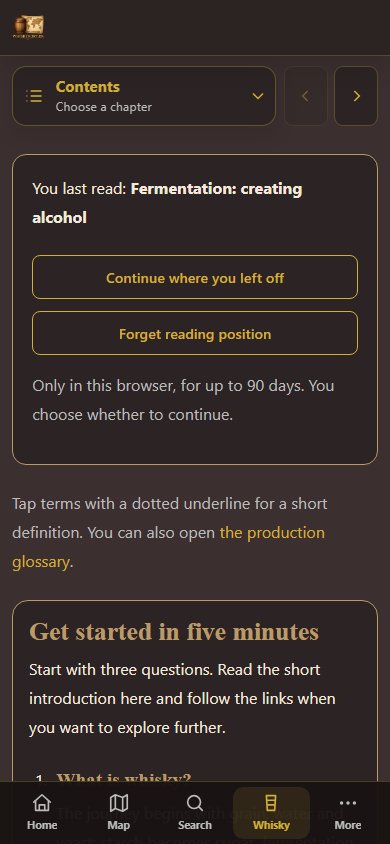
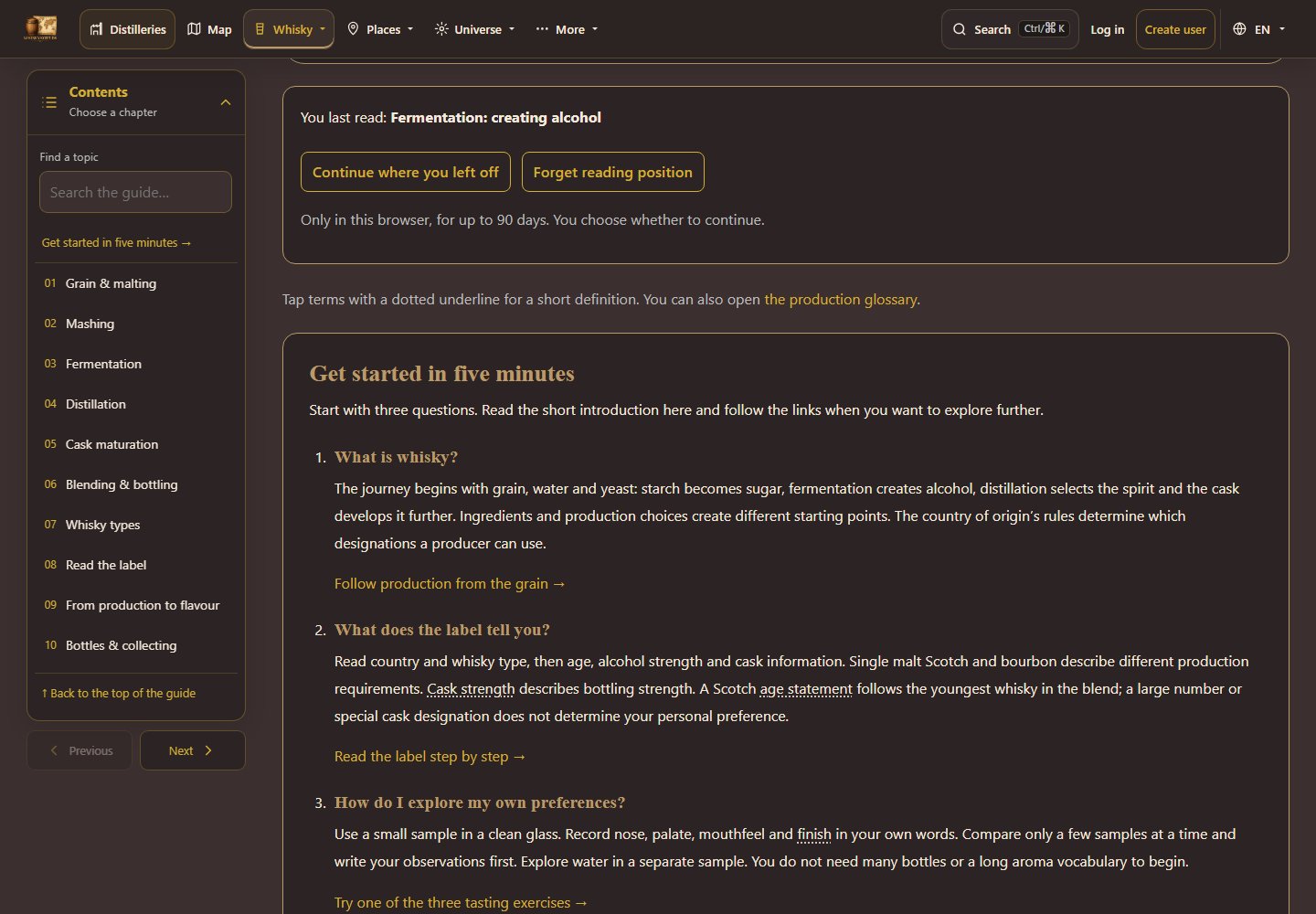
A section is saved, not an exact line, only in this browser and for up to 90 days after your last reading. Direct section links and bookmarks take priority. This feature requires JavaScript and browser storage. The guide still works when storage is disabled.
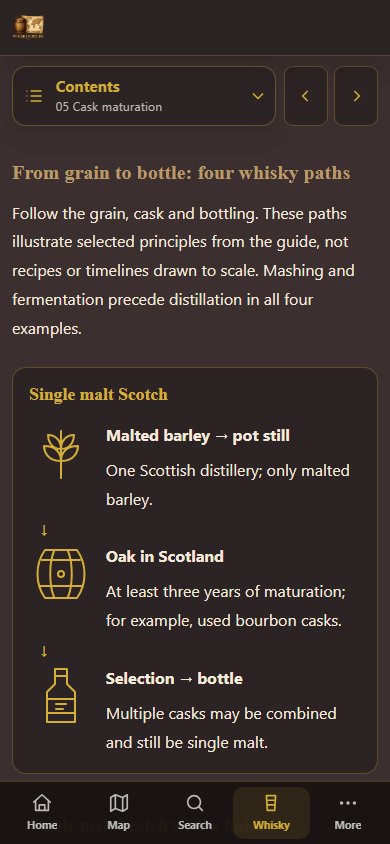
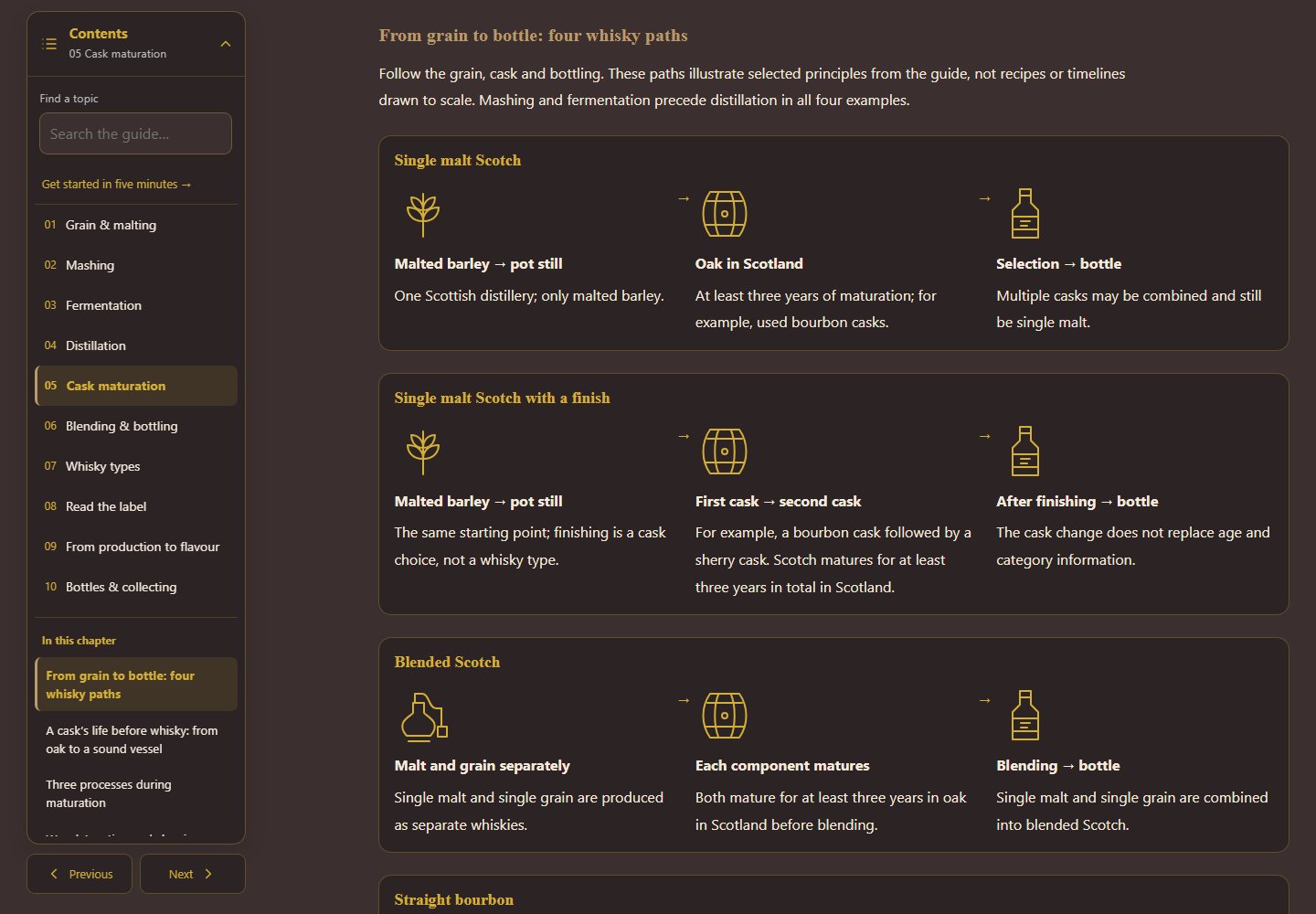
Choose Cask maturation in Contents and then From grain to bottle: four whisky paths. Follow grain, cask and bottling for single malt Scotch, single malt with a finish, blended Scotch and straight bourbon. Read arrows to the right on desktop and downwards on mobile. Names link to the relevant explanations.
The overview shows principles, not a timeline drawn to scale. It also works without JavaScript.
New to whisky? Start with the five-minute introduction. You can also compare countries and cask sizes, follow three tasting exercises and use the note fields on the page. Notes are saved in this browser for 30 days when possible. Choose Use notes in a rating to open a new tab, choose a whisky and insert your comparison into Note. Review and save the rating yourself. You can also use Copy all notes.
Read whisky news and see the latest bottle releases. Open a release to see its details, information and images.
Use the calendar to find tastings, festivals, and other whisky events.
Use Report in the main menu if you find incorrect information, missing data or a broken link. Describe the page and the problem as precisely as possible.
Here you can find help with access and the settings that follow you around the site.
When registering, choose a username and password and provide your email, name and country. Then open the link in the verification email before logging in for the first time.
Select Forgot password on the login page to receive a reset link. If the verification email is missing or the link has expired, you can request a new one.
Use the DA/EN menu at the top of the page to switch between Danish and English. Your choice is retained as you move to other pages.
Open the user menu in the top-right corner and select the light or dark theme. The browser remembers your choice on that device.